
Open the email you want to check.
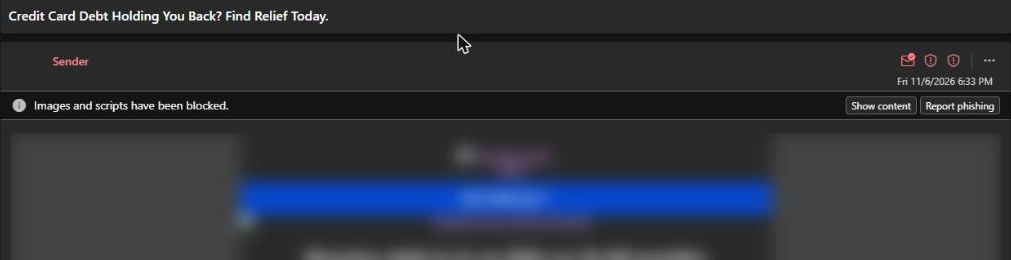
The email open in Outlook Click the three dots at the top right of the email.

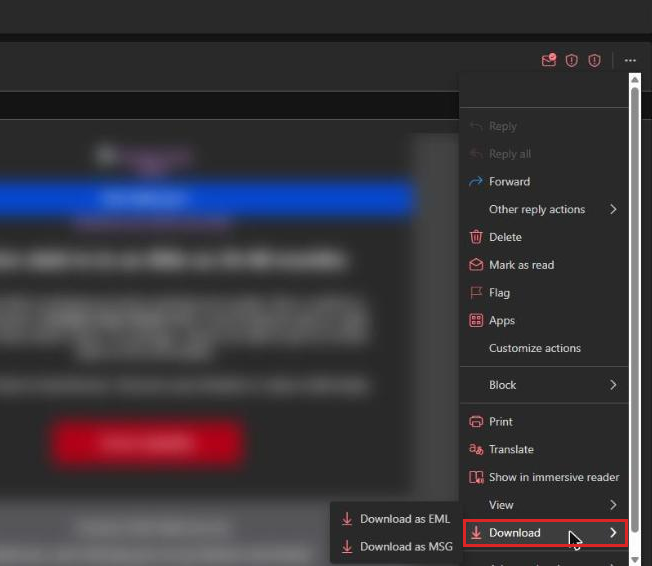
The three dots at the top right of the email Scroll down the menu if needed, then click Download.
Download in the menu Click Download as EML.
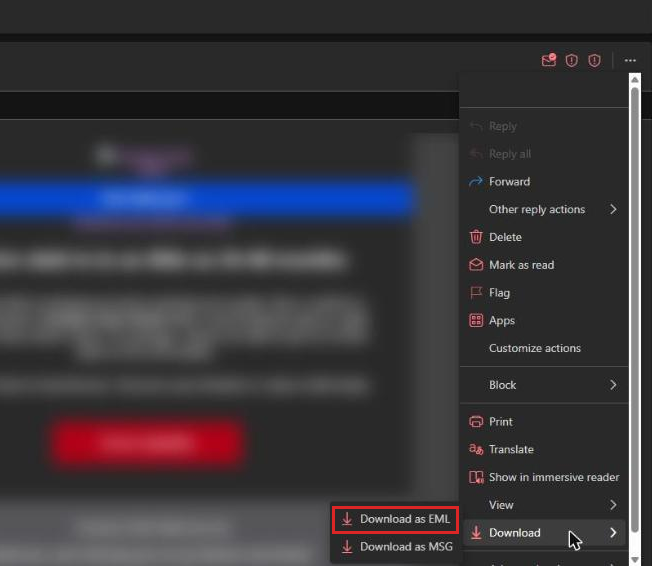
Download as EML in the side menu Look for the saved file in your Downloads folder. It ends in .eml and is named after the email's subject.
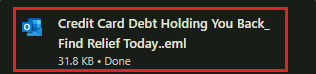
The saved .eml file in the browser's download list Saving a suspicious email as a file does not open it or anything inside it. Don't open or preview the saved file: upload it straight to isitphish.
Go to isitphish.ai/check and attach the file you saved.
Last step: delete the saved file
After isitphish shows your result, delete the saved email file and empty your Recycle Bin (Mac: Trash), so nobody opens it by accident later.
- Windows: right-click the file > Delete, then right-click Recycle Bin on the desktop > Empty Recycle Bin.
- Mac: drag the file to the Trash, then in Finder choose Finder > Empty Trash.